
A friend of mine had an idea for an outdoor tracking app based on a submitted Photo. I thought this was a great way of creating another mini project to help me cement the AWS services prior to my AWS Exam in November.
I would like to note that Ai does support in the development of my projects, but I feel this is important in 2026 where not using Ai would not be advantageous in terms of;
Learning of new services and terminologies
Creation of quick to develop front end pages.
Please note that whilst I use Ai, I am constantly learning the fundamentals in the background so I'm not just a mindless button pusher.
API Keys using KMS and IAM are not included in this project debrief but were setup initially.
Step 1
Using a very simple prompt, I created a photo uploader using .HTML, .CSS (and Tailwind) and Vanilla Javascript. The below code also includes our API Gateway URL which I will touch on next.
<!DOCTYPE html>
<html lang="en">
<head>
  <meta charset="UTF-8">
  <meta name="viewport" content="width=device-width, initial-scale=1.0">
  <title>The Wild Haven GreenScheme</title>

  <!--
    TAILWIND CSS CDN:
    This script loads Tailwind CSS, a utility-first framework.
    Instead of writing separate CSS files, we style elements directly in the HTML
    using classes like 'text-center', 'bg-white', or 'rounded-xl'.
  -->
  <script src="https://cdn.tailwindcss.com"></script>

  <!--
    GOOGLE FONTS:
    Loading a custom font called 'Plus Jakarta Sans' to make the app look modern.
  -->
  <link href="https://fonts.googleapis.com/css2?family=Plus+Jakarta+Sans:wght@400;500;600;700&display=swap" rel="stylesheet">

  <!--
    CUSTOM STYLES:
    A tiny bit of custom CSS to apply our chosen font to the whole body
    and set a soft, nature-themed background color.
  -->
  <style>
    body {
      font-family: 'Plus Jakarta Sans', sans-serif;
      background-color: #f0fdf4; /* Very light emerald green */
    }
  </style>
</head>

<!--
  BODY ALIGNMENT:
  'min-h-screen' ensures the body is at least as tall as the browser window.
  'flex items-center justify-center' pushes the main container perfectly into the middle of the screen.
-->
<body class="min-h-screen flex items-center justify-center p-4">

  <!--
    MAIN CONTAINER:
    This is the white card that holds everything.
    'max-w-md w-full' ensures it doesn't get too wide on large screens but shrinks on mobile.
    'rounded-2xl shadow-xl' gives it that modern app feel with soft corners and a drop shadow.
  -->
  <div class="max-w-md w-full bg-white rounded-2xl shadow-xl overflow-hidden border border-emerald-100 p-6 space-y-6">

    <!-- HEADER SECTION -->
    <div class="text-center space-y-2">
      <!-- Icon Container (A little leaf/nature icon) -->
      <div class="inline-flex items-center justify-center w-12 h-12 rounded-full bg-emerald-100 text-emerald-600 mb-1">
        <svg xmlns="http://www.w3.org/2000/svg" class="h-6 w-6" fill="none" viewBox="0 0 24 24" stroke="currentColor">
          <path stroke-linecap="round" stroke-linejoin="round" stroke-width="2" d="M5 3v4M3 5h4M6 17v4m-2-2h4m5-16l2.286 6.857L21 12l-5.714 2.143L13 21l-2.286-6.857L5 12l5.714-2.143L13 3z" />
        </svg>
      </div>
      <h1 class="text-2xl font-bold text-emerald-950">The Wild Haven GreenScheme</h1>
      <p class="text-xs text-emerald-600 font-medium">Nature & Wildlife Photo Location Mapper</p>
    </div>

    <!-- UPLOAD BOX AREA -->
    <div class="space-y-4">
      <!--
        DROP ZONE:
        This is the dashed box. We use JavaScript later so that clicking anywhere
        inside this box triggers the hidden file input inside it.
      -->
      <div id="drop-zone" class="border-2 border-dashed border-emerald-300 rounded-xl p-6 text-center hover:border-emerald-500 transition-colors cursor-pointer bg-emerald-50/50 relative">

        <!--
          HIDDEN FILE INPUT:
          Default browser file inputs look ugly. We hide this one completely (class="hidden")
          and use JavaScript to virtually 'click' it when the user clicks the drop zone.
        -->
        <input type="file" id="photo-input" accept="image/*" class="hidden">

        <!--
          DEFAULT EMPTY STATE:
          This is what the user sees before picking a photo (the icon and text).
        -->
        <div id="upload-prompt" class="space-y-2">
          <div class="mx-auto w-10 h-10 text-emerald-500 flex items-center justify-center rounded-full bg-emerald-100">
            <svg xmlns="http://www.w3.org/2000/svg" class="h-5 w-5" fill="none" viewBox="0 0 24 24" stroke="currentColor">
              <path stroke-linecap="round" stroke-linejoin="round" stroke-width="2" d="M4 16l4.586-4.586a2 2 0 012.828 0L16 16m-2-2l1.586-1.586a2 2 0 012.828 0L20 14m-6-6h.01M6 20h12a2 2 0 002-2V6a2 2 0 00-2-2H6a2 2 0 00-2 2v12a2 2 0 002 2z" />
            </svg>
          </div>
          <p class="text-sm font-semibold text-emerald-900">Click to upload photo</p>
          <p class="text-xs text-emerald-600">JPG or PNG (Max 1 photo)</p>
        </div>

        <!--
          IMAGE PREVIEW STATE:
          This is completely hidden (class="hidden") when the page loads.
          JavaScript will unhide this and hide the 'upload-prompt' once a photo is chosen.
        -->
        <div id="preview-container" class="hidden relative">
          <!-- The actual image preview -->
          <img id="image-preview" src="" alt="Selected Photo" class="max-h-48 mx-auto rounded-lg object-cover shadow-sm">

          <!-- The little 'X' button to remove the photo -->
          <button id="remove-btn" class="absolute top-1 right-1 bg-white/80 hover:bg-white text-gray-700 rounded-full p-1 shadow transition">
            <svg xmlns="http://www.w3.org/2000/svg" class="h-4 w-4" fill="none" viewBox="0 0 24 24" stroke="currentColor">
              <path stroke-linecap="round" stroke-linejoin="round" stroke-width="2" d="M6 18L18 6M6 6l12 12" />
            </svg>
          </button>
        </div>
      </div>

      <!--
        ERROR BANNER:
        Hidden by default. JavaScript will inject error messages here if something goes wrong.
      -->
      <div id="error-message" class="hidden p-3 bg-red-50 text-red-700 rounded-lg text-xs font-medium border border-red-200"></div>

      <!--
        ACTION BUTTON:
        Starts 'disabled' (unclickable) until a photo is chosen.
        It contains a text span and a hidden spinner div for when it's loading.
      -->
      <button id="upload-btn" disabled class="w-full py-3 px-4 bg-emerald-600 hover:bg-emerald-700 disabled:bg-emerald-200 text-white font-semibold rounded-xl shadow transition-all duration-200 flex items-center justify-center space-x-2">
        <span id="btn-text">Upload Photo</span>
        <div id="btn-spinner" class="hidden w-4 h-4 border-2 border-white border-t-transparent rounded-full animate-spin"></div>
      </button>
    </div>

    <!--
      LOCATION MODAL RESULT CARD:
      Hidden by default. Appears automatically after the S3 upload finishes.
    -->
    <div id="location-modal" class="hidden p-4 bg-emerald-50 rounded-xl border border-emerald-200 space-y-2 animate-fade-in">
      <div class="flex items-center space-x-2 text-emerald-800 font-semibold text-sm">
        <svg xmlns="http://www.w3.org/2000/svg" class="h-5 w-5 text-emerald-600 flex-shrink-0" fill="none" viewBox="0 0 24 24" stroke="currentColor">
          <path stroke-linecap="round" stroke-linejoin="round" stroke-width="2" d="M17.657 16.657L13.414 20.9a1.998 1.998 0 01-2.827 0l-4.244-4.243a8 8 0 1111.314 0z" />
          <path stroke-linecap="round" stroke-linejoin="round" stroke-width="2" d="M15 11a3 3 0 11-6 0 3 3 0 016 0z" />
        </svg>
        <span>Photo Location Result</span>
      </div>

      <!-- Where the actual city/country text gets injected -->
      <div id="location-text" class="text-base font-bold text-emerald-950 pl-7">
        Analyzing photo metadata...
      </div>

      <!-- Subtitle showing the current status of the database poll -->
      <p id="location-status" class="text-xs text-emerald-600 pl-7 italic">
        Polling DynamoDB background processor...
      </p>
    </div>

  </div>

  <!-- JAVASCRIPT SECTION: This makes the page interactive -->
  <script>
    /*
      ===============================================================
      1. CONFIGURATION
      ===============================================================
      This is the URL to your AWS API Gateway.
      It acts as the front door for your backend Lambda functions.
    */
    const API_BASE_URL = 'https://ohpzu9vdr9.execute-api.eu-west-2.amazonaws.com';

    /*
      ===============================================================
      2. DOM ELEMENT SELECTION
      ===============================================================
      Here we grab references to all the HTML elements we need to
      manipulate (hide, show, change text, etc.) using their IDs.
    */
    const dropZone = document.getElementById('drop-zone');
    const photoInput = document.getElementById('photo-input');
    const uploadPrompt = document.getElementById('upload-prompt');
    const previewContainer = document.getElementById('preview-container');
    const imagePreview = document.getElementById('image-preview');
    const removeBtn = document.getElementById('remove-btn');
    const uploadBtn = document.getElementById('upload-btn');
    const btnText = document.getElementById('btn-text');
    const btnSpinner = document.getElementById('btn-spinner');
    const errorMessage = document.getElementById('error-message');
    const locationModal = document.getElementById('location-modal');
    const locationText = document.getElementById('location-text');
    const locationStatus = document.getElementById('location-status');

    // This variable will temporarily hold the image file the user selects.
    let selectedFile = null;

    /*
      ===============================================================
      3. USER INTERACTION EVENT LISTENERS
      ===============================================================
    */

    // A. Clicking the drop zone opens the computer's file browser
    dropZone.addEventListener('click', (e) => {
      // Prevent this from triggering if they actually clicked the 'X' remove button inside it
      if (e.target.closest('#remove-btn')) return;

      // Virtually click the hidden HTML file input
      photoInput.click();
    });

    // B. Handling the file once the user selects it from their computer
    photoInput.addEventListener('change', (e) => {
      if (e.target.files.length > 0) {
        selectedFile = e.target.files[0]; // Save the file to our variable

        // FileReader is a browser tool that reads the file so we can show a quick preview
        const reader = new FileReader();
        reader.onload = (event) => {
          // Put the raw image data into the <img> tag
          imagePreview.src = event.target.result;

          // Hide the "Click to upload" text and show the image preview
          uploadPrompt.classList.add('hidden');
          previewContainer.classList.remove('hidden');

          // Turn on the big green Upload button
          uploadBtn.disabled = false;
          hideError();
          locationModal.classList.add('hidden');
        };
        // Command the reader to start reading the file
        reader.readAsDataURL(selectedFile);
      }
    });

    // C. Handling the 'X' remove button click
    removeBtn.addEventListener('click', (e) => {
      e.stopPropagation(); // Stops the dropZone click event from firing underneath it
      resetForm();         // Call our reset helper function
    });

    /*
      ===============================================================
      4. HELPER FUNCTIONS
      ===============================================================
    */

    // Puts the UI completely back to its starting state
    function resetForm() {
      selectedFile = null;
      photoInput.value = '';
      imagePreview.src = '';
      uploadPrompt.classList.remove('hidden');
      previewContainer.classList.add('hidden');
      uploadBtn.disabled = true;
      hideError();
      locationModal.classList.add('hidden');
    }

    function showError(msg) {
      errorMessage.textContent = msg;
      errorMessage.classList.remove('hidden');
    }

    function hideError() {
      errorMessage.classList.add('hidden');
    }

    /*
      ===============================================================
      5. CORE UPLOAD LOGIC
      ===============================================================
      This function runs when the user clicks "Upload Photo".
      Because it talks to servers, we use 'async' so the browser
      doesn't freeze while waiting for responses.
    */
    uploadBtn.addEventListener('click', async () => {
      if (!selectedFile) return; // Safety check

      // Update UI to show Loading State
      uploadBtn.disabled = true;
      btnText.textContent = 'Uploading...';
      btnSpinner.classList.remove('hidden');
      hideError();
      locationModal.classList.add('hidden');

      try {
        /*
          STEP 1: Get the "Key" to upload.
          We ask our API Gateway / Lambda for a 'Presigned URL'.
          This is a temporary, secure link that allows us to bypass our server
          and drop the image directly into the Amazon S3 bucket.
        */
        const presignedRes = await fetch(`${API_BASE_URL}/get-upload-url`);
        if (!presignedRes.ok) throw new Error('Failed to get presigned upload URL.');

        // Unpack the JSON response to get the URL and the generated filename
        const { uploadURL, fileName } = await presignedRes.json();

        /*
          STEP 2: Upload directly to S3.
          We use a 'PUT' request to send the heavy binary image file straight to AWS Storage.
        */
        const uploadRes = await fetch(uploadURL, {
          method: 'PUT',
          body: selectedFile
        });

        if (!uploadRes.ok) throw new Error('Failed to upload image directly to S3.');

        /*
          STEP 3: S3 Upload is done. Update UI.
          Now we wait for the background Lambda (process-photo-metadata) to do its job.
        */
        btnText.textContent = 'Upload Complete!';
        btnSpinner.classList.add('hidden');
        locationModal.classList.remove('hidden');
        locationText.textContent = 'Analyzing photo metadata...';
        locationStatus.textContent = 'Extracting EXIF GPS coordinates...';

        /*
          STEP 4: Start asking the database if it's done yet.
        */
        pollForLocation(fileName);

      } catch (err) {
        // If anything fails in the steps above, catch the error and show it
        console.error(err);
        showError(err.message || 'An error occurred during upload.');

        // Reset the button so they can try again
        uploadBtn.disabled = false;
        btnText.textContent = 'Upload Photo';
        btnSpinner.classList.add('hidden');
      }
    });

    /*
      ===============================================================
      6. DATABASE POLLING LOGIC
      ===============================================================
      Because the backend Lambda processes the EXIF data in the background,
      the frontend doesn't know exactly when it finishes.

      "Polling" means the frontend repeatedly asks the database (every 2 seconds)
      "Are you done yet?" until it gets the answer or times out.
    */
    async function pollForLocation(fileName, attempts = 0) {
      // If we've asked 10 times (20 seconds) and still no answer, give up.
      if (attempts >= 10) {
        locationText.textContent = 'Location unknown';
        locationStatus.textContent = 'Timed out waiting for location processing.';
        return;
      }

      try {
        // Ask API Gateway to check DynamoDB for this specific file name
        const res = await fetch(`${API_BASE_URL}/get-location?fileName=${encodeURIComponent(fileName)}`);

        if (res.ok) {
          const data = await res.json();

          // If the backend has replaced the temporary "Processing..." text with a real location
          if (data.location && data.location !== 'Processing EXIF metadata...') {

            // Success! Update the UI with the final location.
            locationText.textContent = data.location;
            locationStatus.textContent = 'Retrieved directly from DynamoDB';
            return; // Stop the polling loop completely
          }
        }
      } catch (err) {
        console.warn('Polling check error:', err);
      }

      // If we didn't return (stop) above, wait 2000 milliseconds (2 seconds)
      // and then call this exact same function again, adding 1 to our attempts counter.
      setTimeout(() => pollForLocation(fileName, attempts + 1), 2000);
    }
  </script>
</body>
</html>
Step 2.
I used API Gateway as the entry point into my AWS backed but as API Gateway is not suitable for high res photos going through it (more costly and prone to timeouts).
So instead of passing the image through the API, a lambda programme (get-presigned-url) acted as the gatekeeper to allow a photo in without exposing my API Keys.
import json
import boto3
import uuid
import os
from botocore.config import Config

s3_client = boto3.client('s3', config=Config(signature_version='s3v4'))
BUCKET_NAME = os.environ['BUCKET_NAME']

def lambda_handler(event, context):
    try:
        file_name = f"{uuid.uuid4()}.jpg"

        # Generate URL without strict content-type signature lock
        presigned_url = s3_client.generate_presigned_url(
            'put_object',
            Params={
                'Bucket': BUCKET_NAME,
                'Key': file_name
            },
            ExpiresIn=300
        )

        return {
            'statusCode': 200,
            'headers': {
                'Access-Control-Allow-Origin': '*',
                'Access-Control-Allow-Headers': '*',
                'Access-Control-Allow-Methods': 'GET, PUT, OPTIONS'
            },
            'body': json.dumps({
                'uploadURL': presigned_url,
                'fileName': file_name
            })
        }
    except Exception as e:
        print(f"Error: {e}")
        return {
            'statusCode': 500,
            'body': json.dumps({'error': 'Could not generate URL'})
        }
This script was also adapted to Access-Control-Allow-Origin so browsers wouldn't block it.
Step 3.
The photo is then uploaded to an S3 Bucket which has an Even notification attached to it, which will trigger another Lambda function

Step 4.
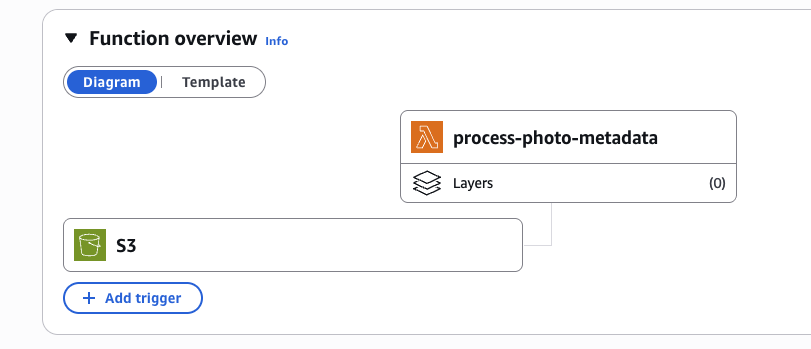
The lambda function process-photo-metadata has now been triggered and this will begin to assess the photo's metadata and where the photo was taken. This uses EXIF Binary Parsing which I am currently not familiar with to show the exact GPS. This then writes the location to the DynamoDB table
Step 5.
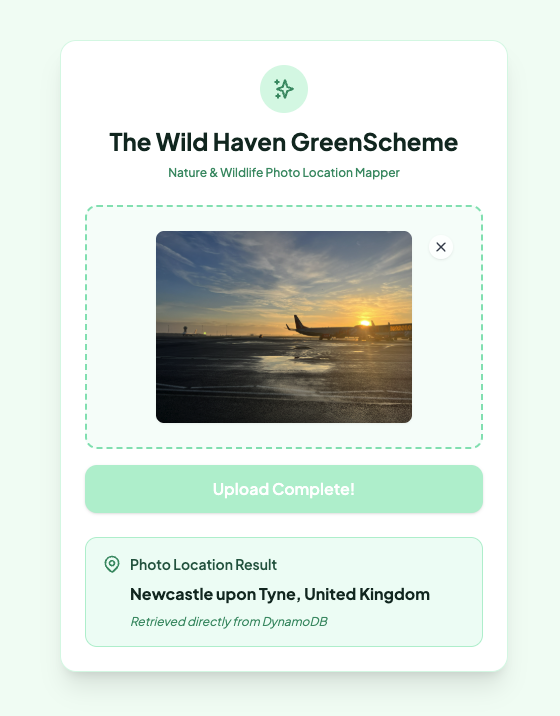
In our HTML file, we have a Javascript function that begins polling the AWS Api for the result of the Photo. It will run 10 times before timing out to prevent overuse.
  6. DATABASE POLLING LOGIC
      ===============================================================
      Because the backend Lambda processes the EXIF data in the background,
      the frontend doesn't know exactly when it finishes.

      "Polling" means the frontend repeatedly asks the database (every 2 seconds)
      "Are you done yet?" until it gets the answer or times out.
    */
    async function pollForLocation(fileName, attempts = 0) {
      // If we've asked 10 times (20 seconds) and still no answer, give up.
      if (attempts >= 10) {
        locationText.textContent = 'Location unknown';
        locationStatus.textContent = 'Timed out waiting for location processing.';
        return;
      }

      try {
        // Ask API Gateway to check DynamoDB for this specific file name
        const res = await fetch(`${API_BASE_URL}/get-location?fileName=${encodeURIComponent(fileName)}`);

        if (res.ok) {
          const data = await res.json();

          // If the backend has replaced the temporary "Processing..." text with a real location
          if (data.location && data.location !== 'Processing EXIF metadata...') {

            // Success! Update the UI with the final location.
            locationText.textContent = data.location;
            locationStatus.textContent = 'Retrieved directly from DynamoDB';
            return; // Stop the polling loop completely
          }
        }
      } catch (err) {
        console.warn('Polling check error:', err);
      }

      // If we didn't return (stop) above, wait 2000 milliseconds (2 seconds)
      // and then call this exact same function again, adding 1 to our attempts counter.
      setTimeout(() => pollForLocation(fileName, attempts + 1), 2000);
    }
This is the Lambda code that processes such a polling request
import json
import boto3

dynamodb = boto3.resource('dynamodb')
table = dynamodb.Table('photo-metadata')

def lambda_handler(event, context):
    # Get fileName from query parameters: /get-location?fileName=xyz.jpg
    params = event.get('queryStringParameters') or {}
    file_name = params.get('fileName')

    if not file_name:
        return {
            'statusCode': 400,
            'headers': {'Access-Control-Allow-Origin': '*'},
            'body': json.dumps({'error': 'Missing fileName parameter'})
        }

    try:
        response = table.get_item(Key={'fileName': file_name})
        item = response.get('Item')

        if item:
            return {
                'statusCode': 200,
                'headers': {
                    'Access-Control-Allow-Origin': '*',
                    'Access-Control-Allow-Methods': 'GET, OPTIONS'
                },
                'body': json.dumps({'location': item.get('location', 'Location processing...')})
            }
        else:
            return {
                'statusCode': 200,
                'headers': {'Access-Control-Allow-Origin': '*'},
                'body': json.dumps({'location': 'Processing EXIF metadata...'})
            }
    except Exception as e:
        print(f"Error: {e}")
        return {
            'statusCode': 500,
            'headers': {'Access-Control-Allow-Origin': '*'},
            'body': json.dumps({'error': 'Failed to fetch location'})
        }
This then results in a resulting image having a location.
Future Considerations
This has been a fairly straightforward example to achieve. I am not saying I understand how the code between AWS and my Frontend is linking yet but this is just the beginning.
From here I could develop this further by creating a login area where someone can upload a photo, it would save to their account.
About the author
- Learning to Code whilst having several projects under my belt.
Comments
Join the discussionNo comments yet. Be the first to comment.
Application Programming Interface (API)
This is the beginning of my journey with API Calls and the things that you can achieve